Docs / Honbu
Honbu - Command Center
Every account on one screen, combined P&L at a glance, and a global kill switch on a hotkey that works even when NinjaTrader is not the focused window.
Last updated 2026-08-25
Honbu (本部) is the headquarters: the screen you keep open when you are trading more than one account, and the button you hit when it all goes sideways.
Prop traders end up with four, seven, a dozen accounts across two or three firms. NinjaTrader will show you one at a time. Honbu shows you all of them, adds up the damage, and gives you one control that flattens everything.
The Command Center tab
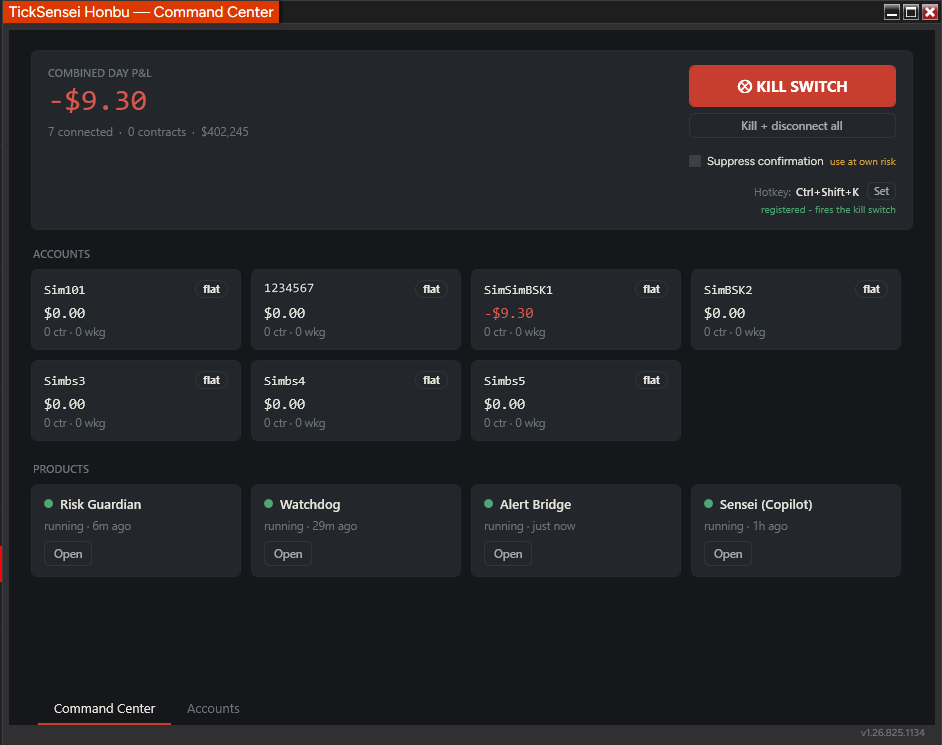 Combined P&L and the kill switch at the top, account tiles in the middle, product health at the bottom.
Combined Day P&L is the headline: every connected account added together, with the account count, total open contracts, and total balance underneath. This is the number that tells you whether today is going well, and it is the one NinjaTrader will not show you.
Account tiles give each account its position state (flat or the net position), day P&L, open contracts, and working orders. A red number means that account is down.
Product tiles show whether each of your other TickSensei tools is running and when it last did something. Risk Guardian - running - 6m ago means the guard is alive and ticking. If a product you expect to be protecting you shows as stale or missing, this is where you find out. Open launches it.
The kill switch
The kill switch flattens every position on every connected account.
Two buttons:
- KILL SWITCH cancels working orders and closes positions across all accounts.
- Kill + disconnect all does the same and then disconnects, for when you want the platform to stop doing anything at all.
Flatten always cancels working orders before closing positions, and it advances only on actual confirmations from the account, never by assuming a command worked. Each account gets five seconds to cancel and five to close; anything that misses is marked failed with a reason, and you can retry it individually.
FLATTEN ALL is license-independent by design. Even if your subscription lapses or the network is down, going flat still works. Locking a trader out of the exit is not something we are prepared to ship.
The hotkey
The kill switch is bound to a global system hotkey, Ctrl+Shift+K by default. Global means it fires even when NinjaTrader is not the focused window, which is the point: you may be in a browser or a chat window when you decide you are done.
Click Set to rebind it. If the combination is already taken by another application, Honbu tells you and keeps the old one rather than failing quietly.
The confirmation
By default the kill switch asks before it fires. The Suppress confirmation checkbox removes that prompt, and the label next to it says use at own risk for good reason: with it ticked, a mis-hit hotkey flattens your book instantly.
Leave the confirmation on unless you have a specific reason not to.
The Accounts tab
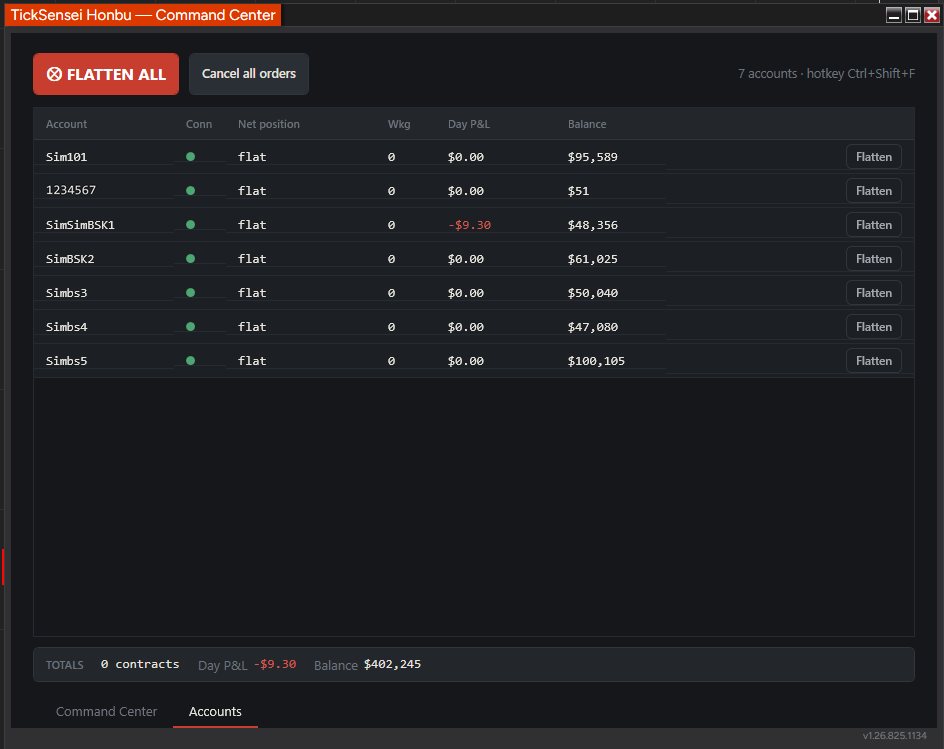 The Accounts tab: the same accounts in a dense table, with a totals row at the bottom.
The table refreshes about twice a second and carries per account: connection status, net position, working order count, day P&L, and balance. The TOTALS row at the bottom sums contracts, day P&L, and balance.
Each row has its own Flatten button that flattens only that account. To flatten every account at once, use FLATTEN ALL on the toolbar (or the kill-switch hotkey).
The flatten overlay
When a flatten runs, a full-screen overlay shows each account’s progress through its phases: cancelling, closing, then confirmed or failed. Failures show a reason and a Retry button for that account alone.
Every flatten-all is written to an append-only audit log with start time, per-account outcome, and timings. If you need to reconstruct what happened during a bad five minutes, it is in there.
How Honbu fits with the rest
Honbu is the manual control surface. It is alert-only and operator-driven by design:
- Its risk bands are local thresholds that colour the tiles. They do not enforce anything.
- Hard enforcement, lockouts, and tilt-proofing are Fudoshin’s job.
- Automated failure recovery is Ukemi’s job.
- Honbu is the human in the loop, with one button and one hotkey.
If you run more than two accounts, keep Honbu open on a second monitor. The combined P&L number alone changes how you trade a bad day.
Troubleshooting
An account is missing. Honbu shows connected accounts. If it is not connected in NinjaTrader, it will not appear here.
The hotkey does not fire. Another application has claimed the combination. Honbu reports this next to the hotkey; click Set and pick another.
A flatten shows Failed. Read the reason. A disconnected account fails immediately, since there is nothing to send. A timeout means the broker did not confirm within five seconds; the position may still have closed, so check before retrying.
Cancel all orders cancels every working order on all enabled accounts without touching open positions. Use it to clear resting orders while staying in your trades; use FLATTEN ALL or the kill switch when you also need to close positions.
Related
- Fudoshin - Risk Guardian: automatic enforcement, so you need the kill switch less
- Ukemi - Strategy Safety Net: catches the failures you are not watching for
- Kiai - Alert Bridge: kill-switch events out to your phone
Estimates and tooling only. Your prop firm's published rules are always authoritative, and nothing here is financial advice. Questions? support@ticksensei.com